
In about two months time the timer will start ticking on my PhD thesis. Being an organised type of person I want to have all my ducks lined up in terms of reading, writing and productivity tools. I’ve been getting to grips with many of these over the past while and am now in a position where my golden triangle of PhD tools has been decided. These are Scrivener (for writing), Nvivo (for literature and data analysis) and EndNote (for all things reference related).
Why EndNote and not Mendeley, Zotero or something else? For many years I have been in the habit of selecting “Send to Endnote Web” when browsing library resoures for teaching, student research or my own studies.

I dabbled with Mendeley while studying at Edinburgh in 2017/18 and thought that while the interface was nice looking (on my Mac and iPad) it didn’t seem to do anything different to EndNote where my library was already building up nicely with over 600 references at this point. There was one problem with my workflow though and the following screenshot gives a hint:

Well spotted, there are no PDFs, not one. Once I had sent a reference to EndNote I downloaded to an appropriate desktop folder, all nice and neat but an empty EndNote reference. Time went by and I continued this practice until now when I am determined to get as organised as I can be with my triangle of tools all talking to each other. I’m happy enough with my recent experiences of Nvivo and Scrivener and now that I’m connecting Scrivener to my EndNote library it will mean less manual effort in the future (once I’ve gotten to grips with it all of course!).
Today, I wondered about how I should organise my EndNote library to support my thesis, after all, I have a lot of references and PDFs that I will likely be using. Enter Group Sets and Smart Groups. In my library I already had a list of groups, a very long list gathered over a period of time. Now I didn’t want to lose the list, I just wanted a subgroup to store my selections from the long list. It turns out that the Group Set is designed for this. So, I created a new group set called PhD thesis and moved two groups from my long list into it:
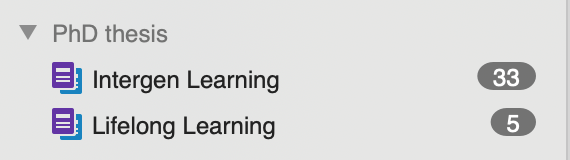
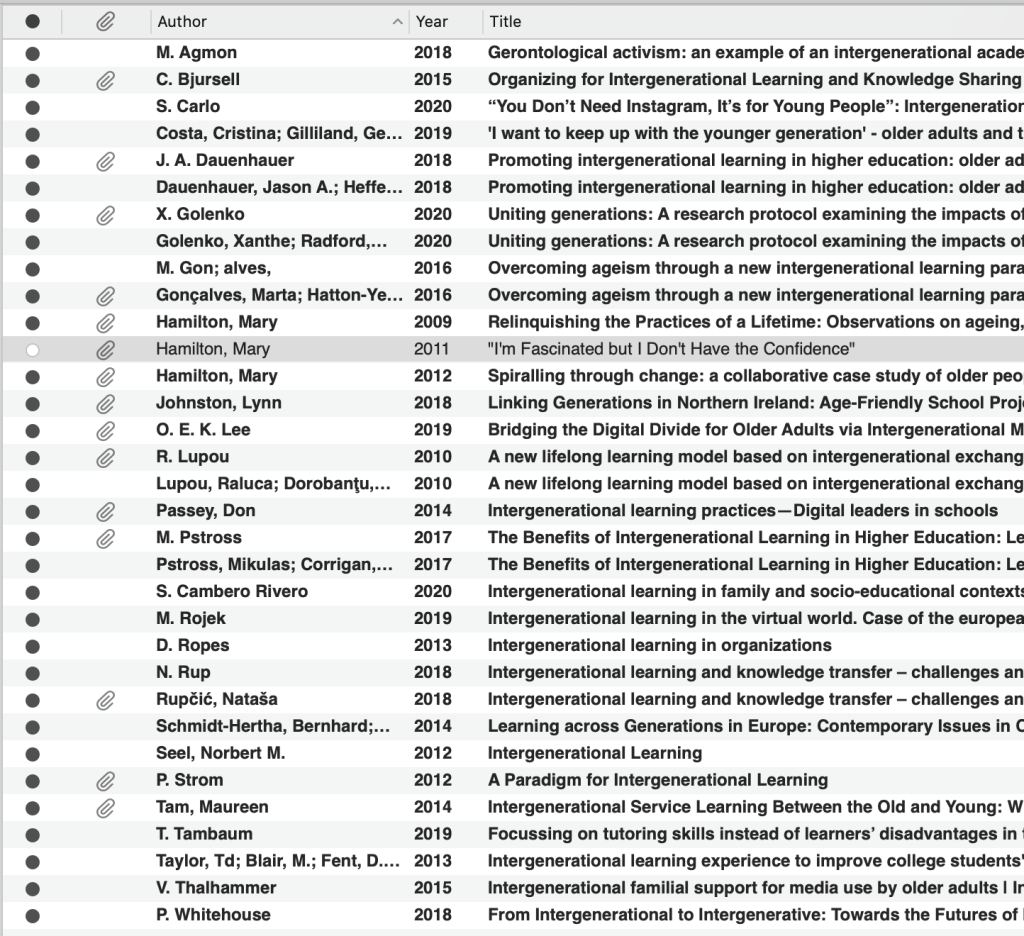
Taking the first folder, Intergenerational Learning, as an example, it certainly looks messy, there are some duplicates in there and the author name convention is not consistent. Classic case of rubbish in rubbish out so preparation is a learning going forward. It might not matter though if EndNote produces an APA 6th style reference list🤞I had already imported PDFs from my desktop folder of the same name, however, the content doesn’t match up, hence the reason why I want to have all my PDFs in EndNote:
Taking the second folder example, Lifelong Learning, I have 4 PDFs stored on desktop and there are 5 references in EndNote:
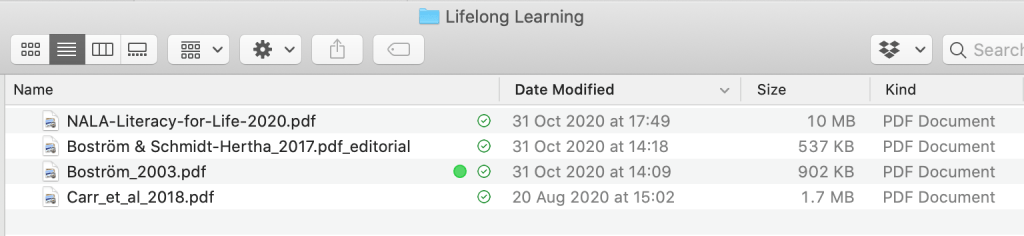

Clearly my filing system is a mess since only one of these references is common to both. Using the File > Import feature I select the option of PDF File or Folder, and Discard Duplicates.

I still have some work to do to tidy up the references and to track down and import the ‘missing’ PDFs. I think I may also set up some Smart Groups based on paper title to automate where the reference should be located but that’s a task for another day. For now, the important thing is that I’ve made a start and the ducks are lining up…
Next day: I freed up some time to continue this spring cleaning effort and get better acquainted with EndNote Desktop using my current project. It needed to be done and today is as good a day as any. Here is my checklist, all items completed:
- Create smart lists based on title to show papers that are closely related eg. Title contains older adult, ageing, aging, ageism, digital. This produces a list of 93 references, journal articles, books and web pages (yep, I even managed to create a couple of web page references manually).
- Match up PDFs to references without PDFs attached in EndNote. This wasn’t too painstaking since I have a consistent format for naming downloaded PDFs and it worked well. The plan is that EndNote will become my go to place for reading, taking notes etc.
- Connect Scrivener to EndNote to create a reference list, a straightforward selection path on my Mac: Scrivener> Preferences> General> Citations> Choose EndNote X9 application from desktop. I wondered if this would work yesterday with EndNote Online and it didn’t, hence the move to EndNote Desktop and success in this task!
After that it was a question of following step 2 of Elaine’s post and Bob’s your uncle. And I have the screenshots to prove it:

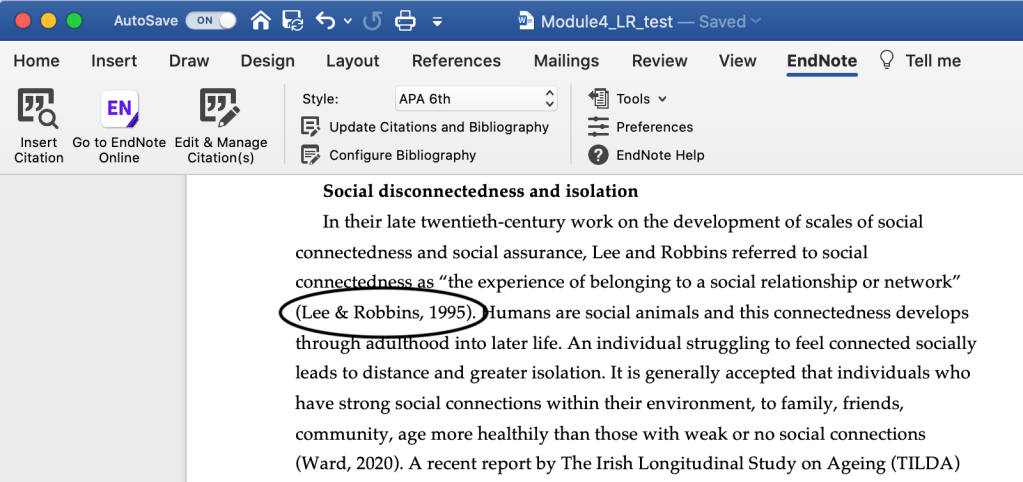
To be fair, a resolve message popped up asking to select one of two Ward, 2020 references in my library. I picked the correct one but for some reason it only displays the first author so further investigation is required. And best of all an automatic reference list at the end. The font settings can easily be changed and I’m sure there’s a setting to pull in my preferred Palatino 12 but for now I’m a happy camper!

Until next time, Sandra
 Sandra Flynn
2 thoughts on “Organising the chaos… EndNote (and not before time!)”