
I like to think that every challenge I have encountered on my PhD pathway is a lesson learned and worth documenting on my blog so I (and any interested reader) can benefit from my experience. This post was prompted by a few recent events – addressing minor typographical errors in my thesis, preparation to submit a paper to a journal, and a reflection from a research supervisee.
In my thesis, a few reference issues slipped through that I had not picked up on prior to submission:
| Original text | Revised text |
| that (Gilster, 1997) defines as… | that Gilster (1997) defines as… |
| Yin, cited in (Baxter & Jack, 2008)… | Yin, cited in Baxter and Jack (2008)… |
| Morgan (Morgan, 2014a)… | Morgan (2014a)… |
You might wonder why I had not spotted these as I was proofreading the final draft. In my defence I would say that it was not until I had already submitted that I organised a printed and spiral bound copy of the work. Up to that point I was reading it on the display of my 13″ MacBook Air so it was not until I was reading through the printed copy that I picked up some errors that should have been addressed. No need for me to call out my recommendation on this point!
The journal paper I was recently drafting required a different reference style to the APA 7th style that I was familiar with. Not a problem, since my entire library is stored in EndNote. It is a simple process to switch from one style to another by selecting from the dropdown arrow to the right of the style name as in the screenshots below.

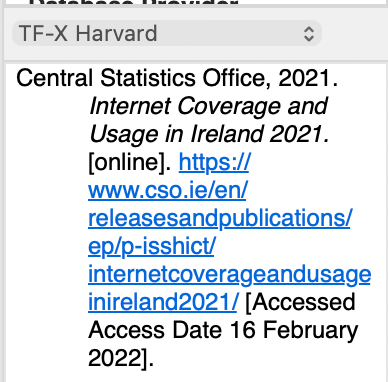
While the style in the image (above right) was not what I was used to, having all my references in the EndNote library meant that if the manuscript is rejected by my preferred journal for the work, the effort to convert the style to another as necessary is not an onerous task. Another button, (Update Citations and Bibliography) included in the screenshot below, when selected, quickly updates the in-text citations and reference list to the preferred style.

And the trick then is, from the same EndNote X9 toolbar location, to select ‘Convert to Plain Text’ from the Tools dropdown list:

The point of this step is to essentially break the link between the document and the reference manager (in this case EndNote, but others most likely have similar features). Otherwise, any reference updates to the document will trigger an updated reference list. While our draft work continues to evolve this is a software feature that we want to continue and only in the final draft when we’re ready to submit for review and feedback should we undertake this final step.
In the issue reported below by a student of mine it is certainly annoying, but experienced reviewers and supervisors will understand the software feature for what it is – a useful means to keep in-text citations and references lists updated. Not being a Mendeley user I had brought some paragraphs of text with a different font from the body text to my student’s attention and his explanation indicates some challenges with the referencing manager (in this case Mendeley) plug in for Word.
Do keep an eye out for differing fonts for in-text citations that may be a setting from your biblio software. Fonts in the body should be uniform. There is evidence of more than one font in use e.g. the literature review paras 2 and 3.
MSc Research supervisor
…font is an issue driven by Mendeley when citation has an ‘et al’. Raised a ticket with Mendeley and have now updated font to default in Word. This solved some of the issue but the et al is still appearing italicised. Have raised with Mendeley. When I change it manually it reverts back when I open the document again and open the Mendeley plug in. Very annoying. I am experimenting with workaround that involves completing all the work – closing Mendeley plugin and then manually changing citations.
MSc Research student
Manuscript drafts, file duplicates (just in case), ‘save as’, backups, cloud storage, external hard drives. As writers and researchers we go to a lot of trouble keeping our work safe and ensuring that we’re working on the most recently updated draft. That’s the idea anyway. What I have learned is that by using a date to prefix the title of a draft I can easily identify the latest one to work on if I have set it aside for any time, for any reason even if I’m just sick of looking at it! When a draft is ready for someone else to review that is the time I will ‘break the link’ between EndNote and Word by converting to plain text, locate any references that need a manual touch to fix and then send it off.
As always, these learnings refer to my use of a Mac, other devices may behave a little differently but the principle remains the same.
Until next time, Sandra
References:
Baxter, P., & Jack, S. (2008). Qualitative case study methodology: Study design and implementation for novice researchers. The Qualitative Report, 13(4), 544-559. https://doi.org/10.46743/2160-3715/2008.1573
Gilster, P. (1997). Digital literacy. Wiley.
Morgan, D. L. (2014a). Integrating Qualitative and Quantitative Methods: A Pragmatic Approach. Sage Publications, Inc. https://doi.org/10.4135/9781544304533
Yin, R. K. (2003). Case study research: Design and methods (3rd ed.). Sage.
 Sandra Flynn