
Ensure all diagrams and tables are accessible and have alt text labels…
PhD Examiners’ report, May 2023
Regular readers will know that since I ‘discovered’ the importance of making writing accessible it is never far from my mind. Since this post is part 3 of a series entitled ‘Thinking about accessibility’, it seems to me that there is always something new to learn, not least that making writing accessible is not a checklist item to be ticked off in order to pass an exam or get a paper published, rather that it is something to be considered in the interests of social justice (well, that’s my take on it anyway). In fact, I am now in the habit of running the accessibility checker before the spelling and grammar check, getting my priorities in order I believe. My most recent endeavour was the minor amendments to my PhD thesis with a ‘good to go’ message (see bottom left of screenshot) once the document was fully updated.
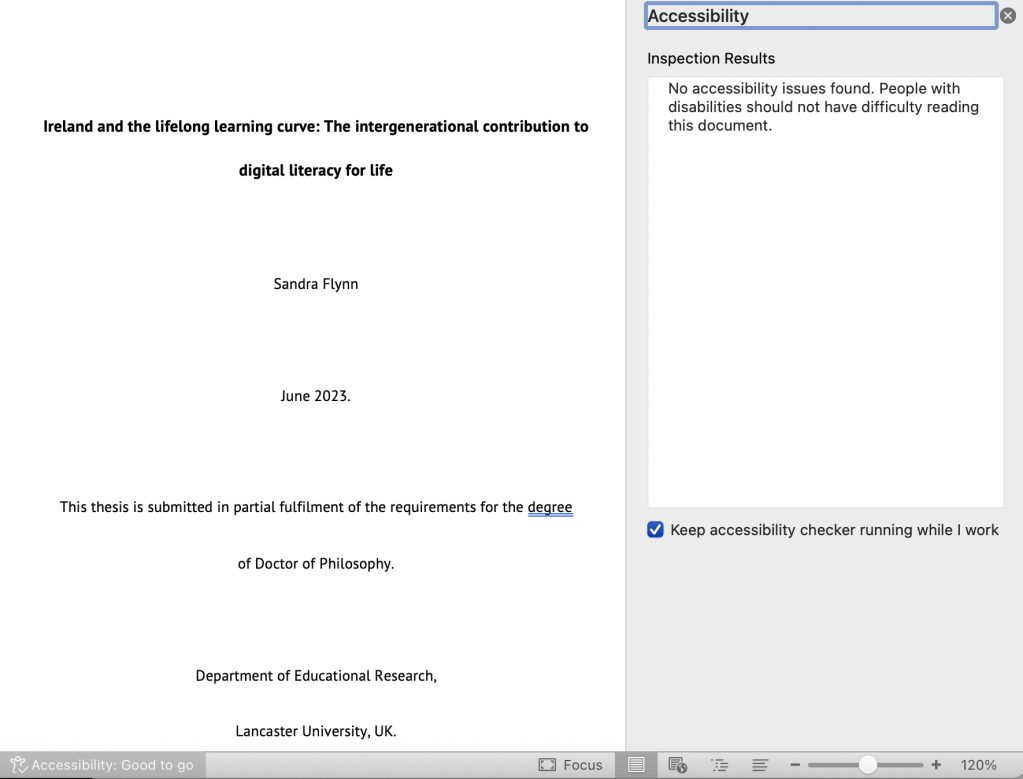
The issue I encountered on this occasion was getting a standard text reader application to read Alt Text added to my figures and table in both Word and PDF formats. Admittedly, I had initially forgotten to add Alt Text to my tables and the Word accessibility checker did not identify this gap, only noted the reading order of the table. It also gave me the ‘good to go’ result which was clearly not the case, so be warned. I am using Microsoft Word for Mac Version 16.74 since the devil is often in the detail, and the feature may behave differently on other versions say for Windows or Word Online. Anyway, with that correction in place it seemed to me that the whole idea of Alt text is to support readers with say a visual impairment. So, why did the Read Aloud feature in Word not ‘read’ the Alt text? Even if it did, the goal was to have the screen reader for the converted PDF document read the Alt text in that format. This didn’t work either. The default PDF application on my Mac is Preview so I tried the path Edit > Speech > Start Speaking (and Edit > Speech > Stop Speaking). This didn’t work for the Alt text in the table. In Adobe Reader the path is View > Read Out Loud > Activate Read Out Loud and that didn’t work either. Screenshots of the paths are included below so I can easily find them again!


What to do? Well, since a variety of Google searches related to ‘Assistive Technology’ for my purpose did not prove fruitful I thought who best to ask but AHEAD. My message to them was as follows:
I have a query that I’m struggling to find an answer for and would appreciate any advice.
Extract from email to Ahead, June 2023
It arose from an examiners’ comment from my PhD viva two weeks ago. While I may be going over and above the requirement to address the comment, the bigger picture is important to me. I have written a couple of blog posts already sharing my thoughts on making my work accessible on the journey towards my PhD (see sandraflynn.com).
When I add Alt text to images and tables in Word the Read Aloud feature does not recognise it. The same applies to when I convert from Word to a PDF. I have used the screen reader feature on both Preview (for Mac) and Adobe but to no avail.
As a document author I am doing everything possible to make my document accessible, however, readers requiring the services of a screen reader will not be able to ‘read’ the Alt text for the tables and images.
The response from Jessica at Ahead was very helpful:
It is not unusual for the read aloud feature not to read out your alternative text on images/tables. The read aloud features do not operate in exactly the same way as screenreader technologies. To check that you have added alternative text correctly, if you right click on your image and select ‘view alt text’ it should appear. Or you could click on the ‘review’ tab at the top of your screen and select ‘check accessibility’ which will list any images missing alt text.
Extract from email response from Ahead, June 2023
This information ticked off one checklist item on my list, my document in Word now correctly passed the accessibility checks. Two fundamental process changes were required. First, the addition of Alt text to the tables that I had inadvertently omitted and second, a font size change to a heading style. I had defined Heading 2 and Heading 3 as different styles but set the same (PT Sans, bold, 12). I did not realise that users of assistive technology would be confused by this so I merely changed Heading 2 to font size 13 and left Heading 3 at font size 12 to achieve the desired result.
Now that the Word document was in order I turned my attention to the PDF format required to deposit the thesis in Lancaster University’s repository. In Microsoft Word for Mac I usually do this using the path File > Print > Save as PDF. Well, it seems that this might not be the best idea. As Jessica advised:
As a general rule, PDFs are not a very accessible file type. The fact that they cannot be edited by users means that they cannot adapt font choice, colours etc which can help with legibility for many people with disabilities. However I understand that there are circumstances in which institutions require PDF format be used. If you use ‘Export’ to create a PDF from a word document it tends not to replicate your accessibility measures unfortunately.
Extract from email response from Ahead, June 2023
She went on to advise that a better option is to use the ‘save as’ feature to save the file as a PDF. On my version of Microsoft Word for Mac the path is File > Save as > File Format > PDF. Then a selection must be made that defaults to ‘Best for printing’. Select the other option clearly labelled ‘Best for….. accessibility’ and then Export, as in the screenshot below.

Similar advice was also forthcoming from a ‘colleague of a colleague’ at LU so it seemed I was now on the right track:
An additional thought is to make sure that the student is exporting the PDF from Word with the accessibility functionality enabled. There is an option to export the PDF for printing which strips out all the embedded accessibility information as it would be redundant when the document was printed.
Extract from email discussion amongst colleagues at Lancaster University, June 2023
At this point I was keen to check that the PDF reflected these features input in Word. As a Mac user I rarely use Adobe Reader (free licence) and do not have access to Adobe Acrobat Pro (paid licence). Preview is my default application for reading PDFs. However, further advice came my way that suggested I was on the wrong track relying on the text reader features of the applications:
I think the problem could be the student is using text reader functionality that is built into the applications rather than a screen reader
It sounds like the student is using a Mac, so they could try turning on voiceover in system preferences- accessibility. Using voiceover rather than the built in text reader should read out the alt text In Word and Preview.
If they have a Mac, they already have a screen reader and lots of other assistive software – it’s all built into the operating system. They can access it under System Preferences.
Extract from email response amongst colleagues at Lancaster University, June 2023
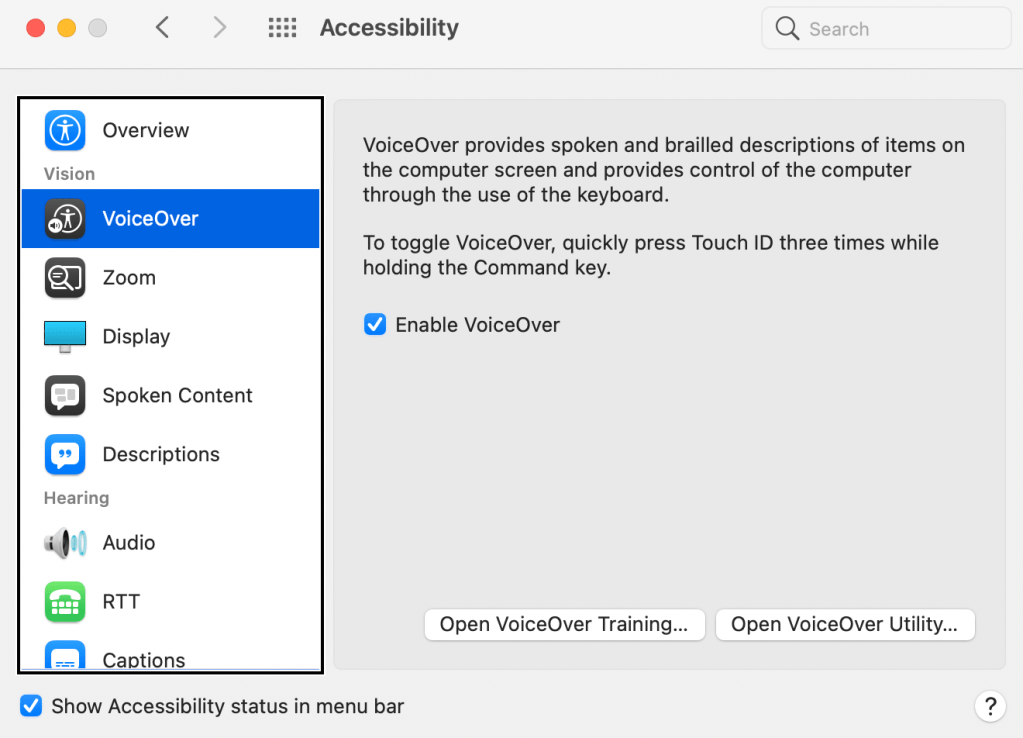
First step was to locate the VoiceOver settings in the system preferences and toggle ‘Enable VoiceOver’ to on. See image 1. Also in system preferences is a VoiceOver Utility feature that, when Image Descriptions is checked, ‘will speak descriptions of images on apps and on the web’. See image 2. I think this might be what I’m looking for to solve the issue of Alt Text not being read out loud.

Nothing for it but to give it a go selecting a couple of tables and figures in my thesis PDF opened in the Preview app.
[A couple of hours later…].
Well, I may need to spend more time on this since it is not working the way I expect it to. I imagine this is not a challenge for anyone regularly using the VoiceOver Recognition feature on a Mac. In my experience Apple has always been considerate of the user experience so this is likely no different. In that case it’s just me. However, I consider this to be quite a challenge for a first-time user who is simply trying to create an accessible PDF of a thesis document with the tools available to me (Mac, Word for Mac, Preview, Adobe Reader). Perhaps the software companies who provide these applications (Microsoft, Apple, Adobe) could just make the process easier at application level so that writers like myself can hear the Alt text descriptions added to images, tables and the like. We want to do the right thing… In the meantime I will continue my efforts to better familiarise myself with VoiceOver. Also, a couple of links from Jessica offering guidance on using VoiceOver for Mac and using a free screen reader for non-Mac users: (NVDA) for Windows.
And my next steps for when my thesis lands back in my inbox? Save the Word file as a PDF instead of print as PDF, and don’t beat myself up for not yet being fully up to speed on the world of accessible writing. One step at a time towards another lifelong learning goal.
For earlier posts in this series please click here.
Until next time, Sandra
 Sandra Flynn